
M5Stack Electronic Scale
Build and calibrate a mini electronic scale that displays weight readings, using an M5Stack StickC, a load cell, and UiFlow graphical programming.
What this kit teaches
Electronic scale assembly
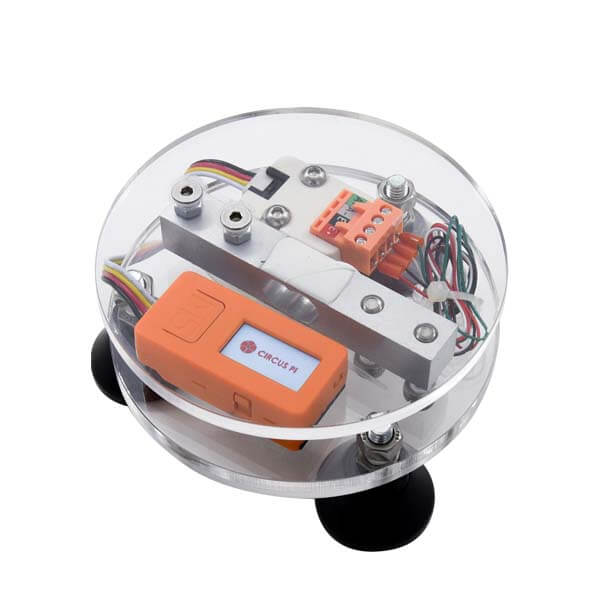
The finished M5Stack electronic scale.
Building a simple electronic scale with the StickC
Getting to know the components and the assembly steps.
Course outline
01 Electronic scale assembly (1 class period)
Unit contents
- The finished M5Stack electronic scale
Related article: Super detailed! M5Stack project electronic scale assembly tutorial
02 Building a simple electronic scale with the StickC (1 class period)
Unit contents
- Getting to know the components
- Assembly steps
Related article: Just 3 simple steps! Build a simple electronic scale with the M5Stack StickC
This course outline is based on existing CIRCUS Pi tutorial articles. Class period counts are estimates and can be adjusted for your class.
Product features
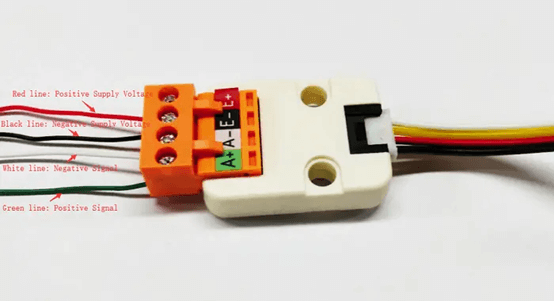
• Assembly steps
The StickC connects to the Weight unit with a Grove cable. Load cell wiring: power (red), ground (black), signal INNA (gray/white), and signal INPA (green).

• Feature development
1. Setup and connection:
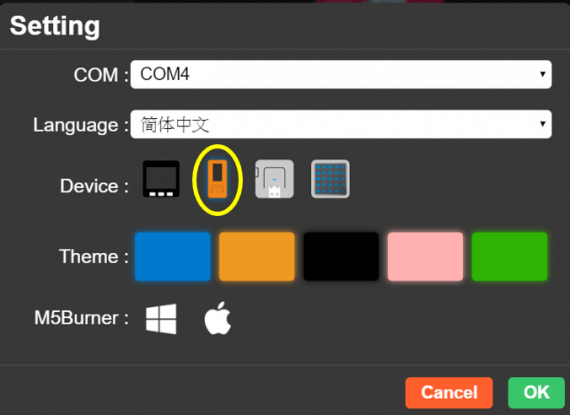
This project uses M5Stack UiFlow for development. Connect the StickC to your computer with a Type-C cable (make sure the USB driver is installed; once it is installed correctly, the computer automatically recognizes the COM port and shows it in the COM field). After connecting, open UiFlow, select StickC Core, and click “OK” to confirm.
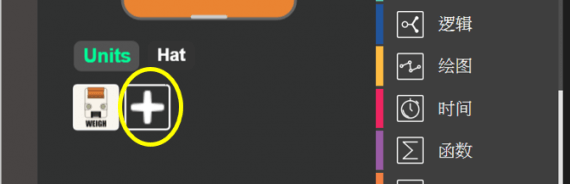
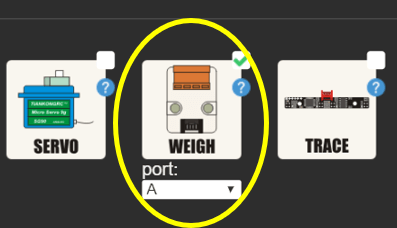
Set the Unit to “WEIGHT” on “PORT A”, then click “OK” to confirm.
2. Feature planning—tare (zeroing):
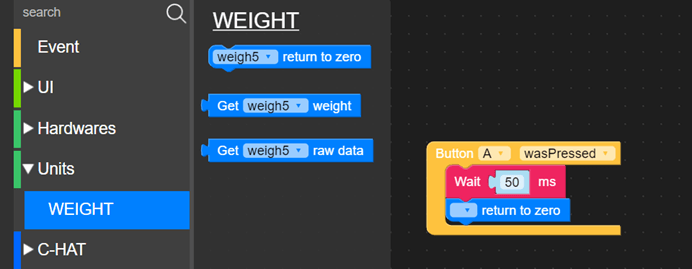
All commercial scales have a tare function, which zeroes the reading for different containers. Zeroing is one of the most important functions of an electronic scale. Add it with the UiFlow Weight unit library, and set it so the scale zeroes when “Button A” is pressed.
3. Feature planning—display UI design:
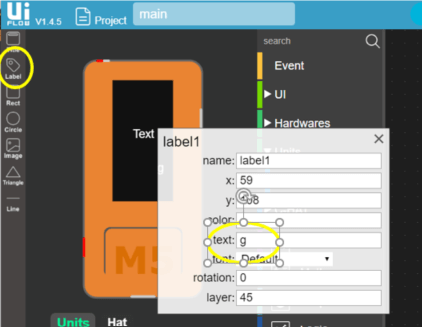
Next, plan the text to show on the screen. An electronic scale must show the weight value and the weight unit. Use UiFlow’s built-in drag-and-drop interface to create text labels. Because the load cell used in this project is rated for 5 kg, grams (g) is the weight unit here. Set one label to always show “g” and the other to show the weight reading.
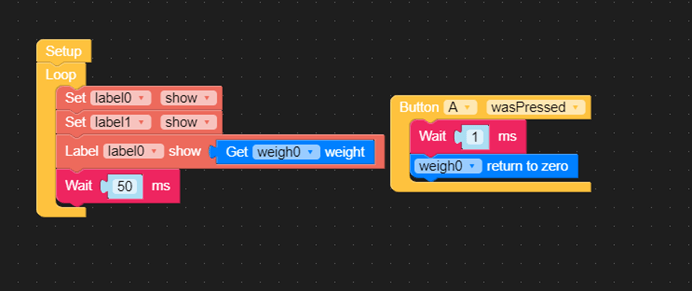
4. Calibrating the sensor values:
After running the program, place a weight or an object of known weight on the scale. The raw readings are uncorrected and show a large error, so they must be calibrated and converted. First, tabulate the actual and displayed weights of different objects in Excel. Next, make a scatter plot, right-click any point on the plot and choose Trendline, then select Linear and display the equation on the chart.
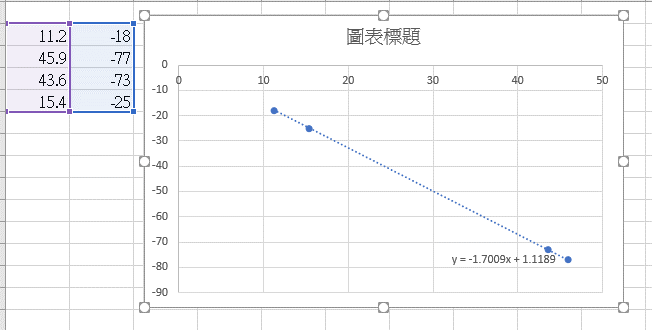
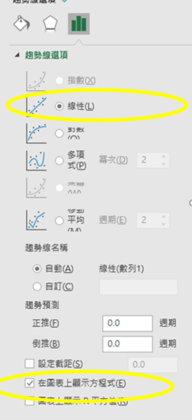
Once you have the equation, convert it with UiFlow’s built-in Math Blockly library (remember to convert the format from floating point to integer).
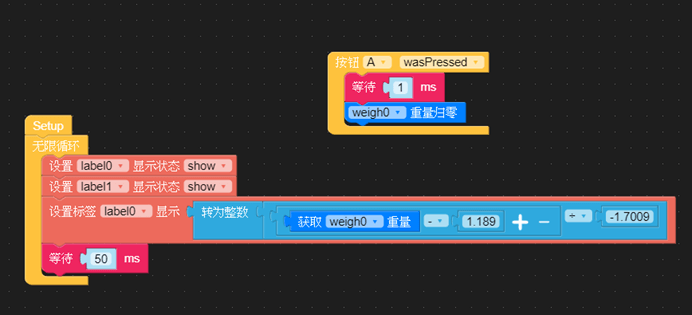
After you run the program again, the weight values display correctly.

Besides showing the weight value, you can use UiFlow to build other interactive UI features. For example, the heavier the load, the redder the color indicator becomes, and a red LED lights up when the scale is overloaded.
Video
Contact us
Your message goes straight to our team, and we usually reply within one business day.
- 01Questions? Send us a message or add us on LINE.
- 02Quotes and orders, including international shipping
- 03Teacher training and professional development

Scan with your phone to add us on LINE.
Add us on LINE